— Time tracking
Time tracking for freelancers, connected to the invoice
Track time with a timer or a weekly timesheet, mark what is billable, and turn unbilled hours into an invoice when the month ends. Prefer to stay in your editor? Ask Claude Code to start the timer for you.
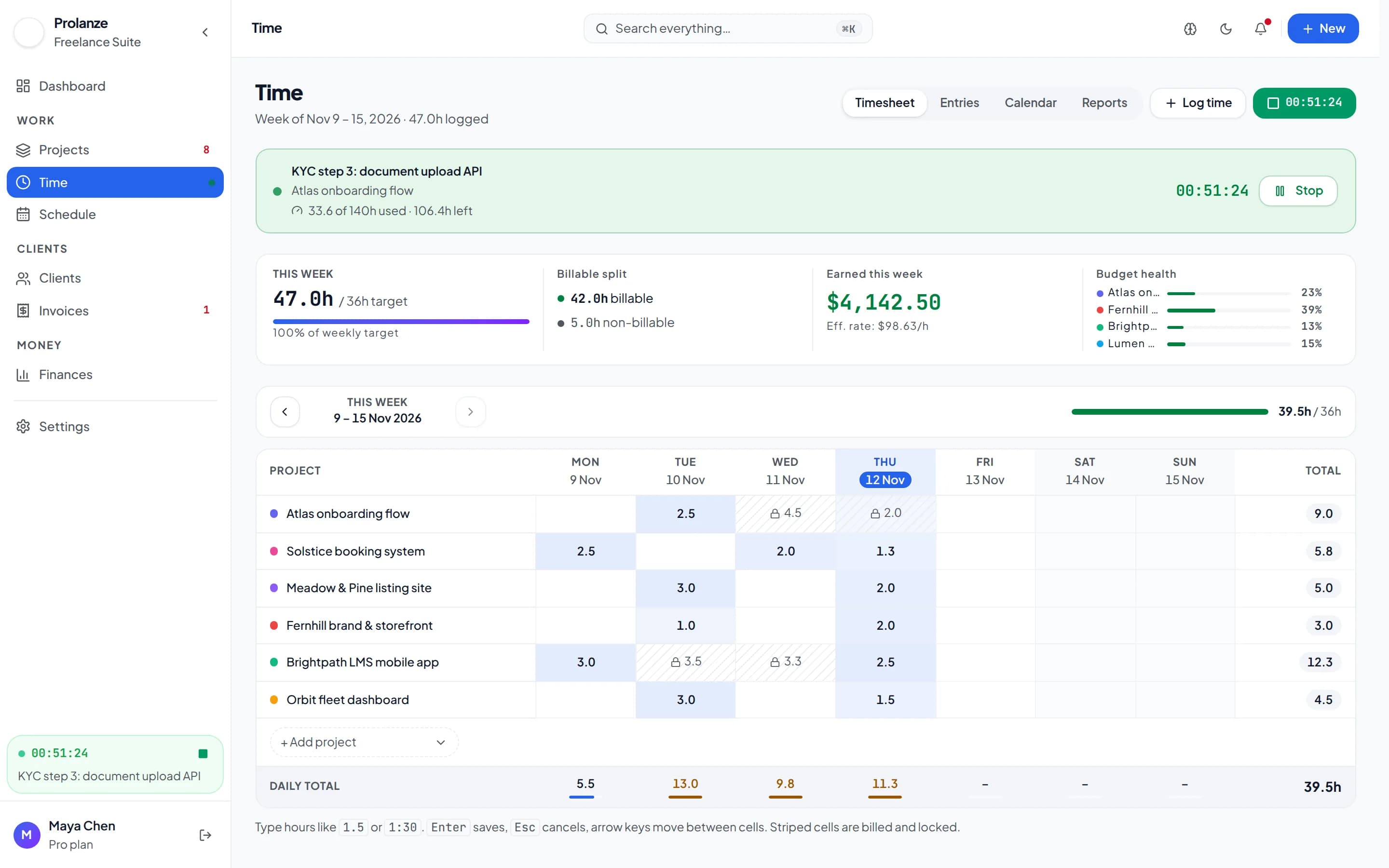
Time tracking only pays off if it reaches the invoice
Most freelancers who stop tracking time do it because the numbers go nowhere: hours sit in one app and invoices are written in another. Tracking becomes overhead instead of income.
In Prolanze every time entry belongs to a project, carries a billable flag and is priced at that project's rate. At the end of the month the unbilled billable hours are one step away from a draft invoice.
Timer, timesheet and templates
Start a timer on a project, and optionally a task, when you begin work. Only one timer runs at a time, so you never end up with two clocks counting the same hour. If you forgot to start it, log the block afterwards in the weekly timesheet.
For work you repeat, such as a weekly client call or a maintenance retainer, save a time template with the project, task, description and default length, and log it in one step.
- One running timer at a time, on a project or a task
- A weekly timesheet for logging and fixing entries after the fact
- Billable and non-billable time on every entry
- Time templates for recurring work
- Hours today, this week, this month and per project at a glance
From hours to invoice
When you are ready to bill, create a draft invoice from all the unbilled billable time on a project, or pick the exact entries to include. Entries that are on an invoice are locked, so a billed hour cannot be changed or billed twice.
Because hours and invoices live together, Prolanze can also show which projects are actually worth doing: revenue, cost and margin per project, based on the time you really spent.
Track time without leaving Claude Code
If you spend your day in Claude Code, switching to a time tracker is exactly the kind of interruption that makes tracking slip. With Prolanze connected over MCP you can say "start a timer on the website project" and keep working. Starting and stopping timers and logging time need the Pro plan; asking how many hours you logged works on Free.
Ask your assistant
Real requests and the Prolanze MCP tools Claude calls to answer them. Read-only requests work on the free plan; changes need Pro.
› Start a timer on the Atlas website project.
current_timer · start_timer
Checks nothing else is running, then starts the timer. Pro.
› Stop the timer. Mark it as the homepage build.
stop_timer · update_time_entry
The finished entry, with your description. Pro.
› How many billable hours did I log this week, by project?
time_summary
Total, billable and per-project hours, with last week for comparison. Works on Free.
› What's unbilled on the Orbit project?
list_time_entries
The billable entries that are not on an invoice yet. Works on Free.
Free and Pro
Free
- Timer and weekly timesheet
- Billable hours and time summaries
- Assistant can read your time, not log it
Pro
- Assistant starts and stops timers
- Assistant logs and fixes entries
- Drafts invoices from your hours
Every new account gets 30 days of Pro, no card required. Full plan details are on the pricing page.
Questions about time tracking
Is time tracking included on the free plan?
Yes. The timer, the weekly timesheet and time summaries are on Free. Pro lets your AI assistant log time for you.
Can I log time after the fact?
Yes. Add or fix entries in the weekly timesheet, or ask your assistant to log a finished block of work with start and end times.
Can I edit time that has already been invoiced?
No. Entries on an invoice are locked, which keeps your invoices and your records in agreement.
Can I run two timers at once?
No. Only one timer runs at a time, so the same hour is never counted twice.
Does Prolanze track my screen or apps?
No. Prolanze records the time you start, stop or log yourself. There is no screenshot or activity monitoring.