If you already spend your day in Claude or Claude Code, the fastest way to cut freelance admin is to let the assistant reach your invoices, hours and projects directly. That is what MCP (Model Context Protocol) is for: a standard way for an AI assistant to use an app's tools with your permission.
This guide connects Claude to Prolanze, a freelance workspace with a 125-tool MCP server. It takes a few minutes, and you choose exactly what Claude is allowed to do.
Before you start
You need two things:
- A Prolanze account. Sign up free. Every new account gets 30 days of Pro with no card, so you can try the write features before deciding.
- An MCP client. This guide covers Claude Code and Claude. Cursor, VS Code and other clients that support MCP OAuth work the same way with the same URL.
Connect Claude Code
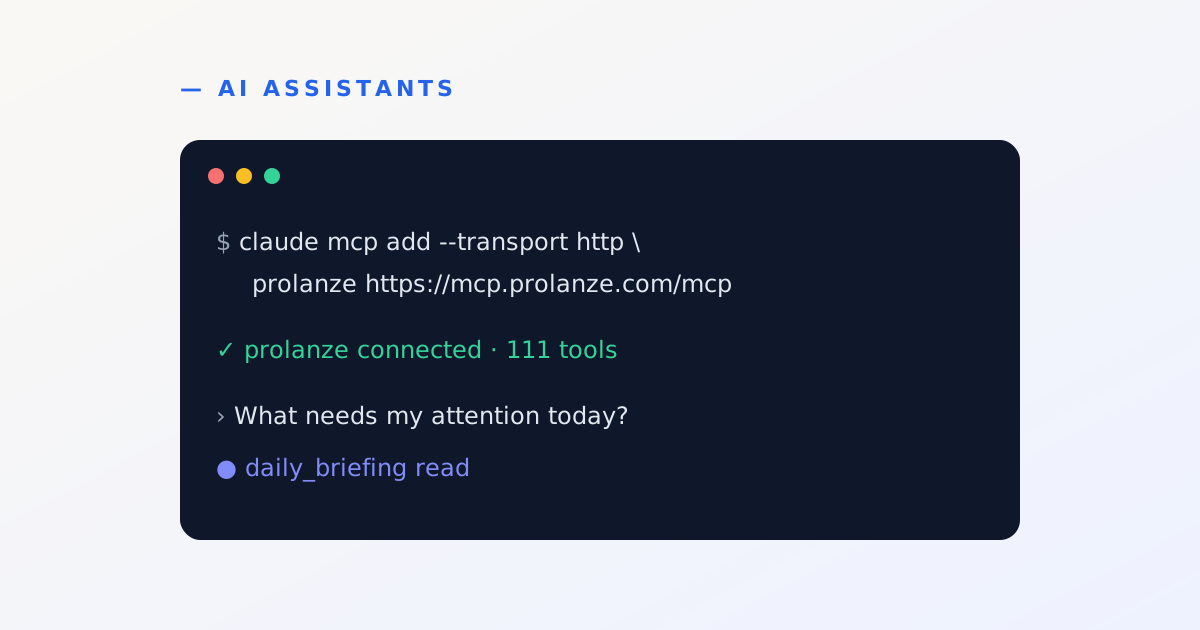
Claude Code adds remote MCP servers with one command. Run it in any terminal:
claude mcp add --transport http prolanze https://mcp.prolanze.com/mcp
Then start Claude Code and run /mcp. Select prolanze and choose to authenticate. Your browser opens Prolanze's sign-in page at app.prolanze.com/oauth/authorize.
Sign in, and you will see what Claude is asking for. This is the important step.
Choose what Claude may do
Prolanze splits access into three permissions, and you tick each one separately:
| Permission | What it allows | Plan |
|---|---|---|
| View | Read clients, projects, time, invoices, expenses and finance reports | Free and Pro |
| Make changes | Create and update projects, tasks, time entries, draft invoices, expenses and more | Pro |
| Send emails | Email invoices and payment reminders, always after your approval | Pro |
Select Allow access, return to Claude Code, and the server shows as connected.
Connect Claude (web and desktop)
In Claude, add Prolanze as a custom connector:
- Open Claude's settings and find Connectors.
- Choose Add custom connector.
- Name it
Prolanzeand pastehttps://mcp.prolanze.com/mcpas the URL. - Connect, sign in to Prolanze, tick the permissions you want, and allow access.
Custom connector menus move around between Claude versions. If you cannot find the option, search Claude's help for "custom connectors".
Check the connection
Ask something only your real data can answer:
What needs my attention today?
Claude calls the daily_briefing tool and replies with your overdue invoices, deadlines in the next two weeks, any running timer and today's meetings. If it answers, you are connected.
A few more to try on any plan:
- "Which invoices are overdue, and by how many days?"
- "How many billable hours did I log this week, by project?"
- "Which projects actually made money this quarter?"
- "How much should I set aside for tax this quarter?" (an estimate from your tax profile, not tax advice)
On Pro, with Make changes ticked:
- "Start a timer on the website project."
- "Set up a project for Acme from this brief, with milestones and tasks."
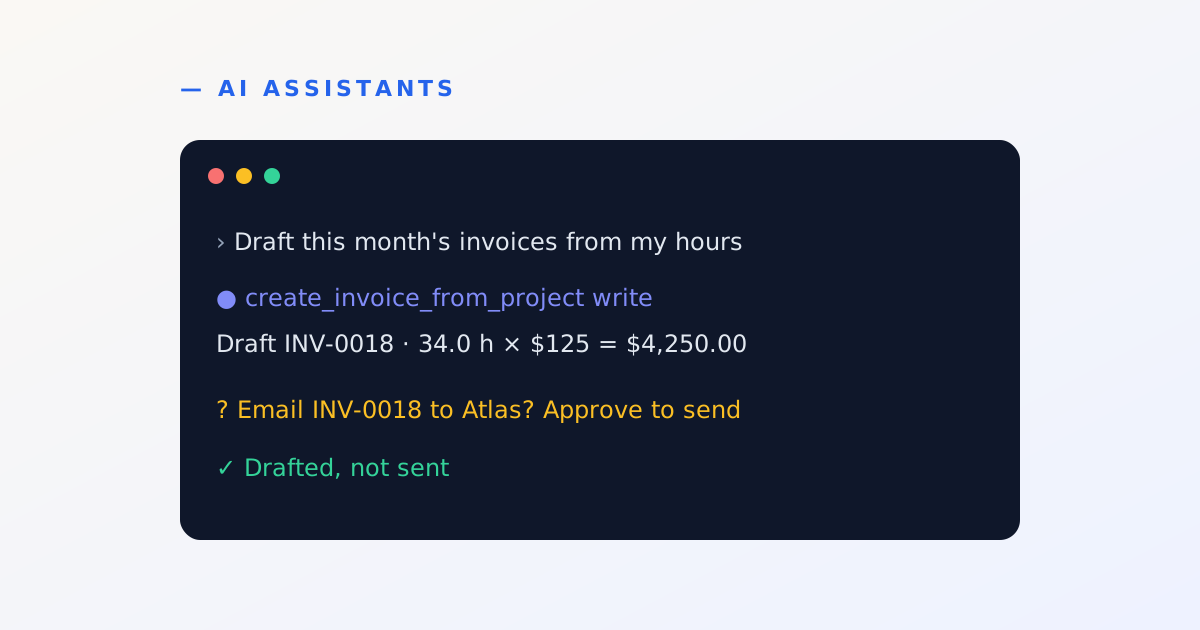
- "Draft this month's invoice for Atlas from my unbilled hours."
What Claude can and cannot do
The safety model is the reason this is usable for real client work, so it is worth knowing exactly:
- Read only on Free. A free connection cannot change anything.
- Approval before anything leaves your workspace. Emailing an invoice or a reminder, recording a payment, marking an invoice paid, cancelling an invoice, inviting someone to a meeting, and opening up your booking link all return a preview first, such as "Email INV-12 ($250) to Acme?". The action only happens after you approve that exact preview, within a few minutes.
- No deletes. There is no delete tool. Claude archives, cancels or completes things instead, so mistakes can be undone.
- No account settings. It cannot change your password, billing or sign-in, or connect a bank.
- A record of changes. Every change made through a connection is listed under Settings, API and agents.
Other clients and personal tokens
Clients that do not support OAuth can use a personal access token:
- In Prolanze, open Settings → API & Agents → Create token. Copy the token (it starts with
plz_and is shown once). - Send it as a header:
Authorization: Bearer plz_…
For example, in a Cursor or VS Code style config:
{
  "mcpServers": {
    "prolanze": {
      "url": "https://mcp.prolanze.com/mcp",
      "headers": { "Authorization": "Bearer plz_…" }
    }
  }
}
Free accounts can create 2 tokens at 60 requests an hour each; Pro allows 10 connections at 1,000 requests an hour.
Troubleshooting
| Symptom | Fix |
|---|---|
| "Token invalid, expired or revoked" | The connection was revoked or your password changed. Reconnect. |
| "Needs a Pro plan" | Free connections are read only. Upgrade in Settings, Billing. |
| "Lacks the write scope" | You connected without Make changes. Reconnect and tick it. |
Next steps
Once Claude is connected, the biggest time saver is month-end invoicing. The next guide walks through it: automate freelance invoicing with Claude Code. For everything the server can do, see the MCP server overview.